How To Use Remote Control In Calls And Meeting?
Matrx enables remote controls in meetings and 1-on-1 calls. If you are a participant, you can ask for the permission to control other’s computer when they are sharing their screen or any applications. Or you can assign others to control your computer when you are sharing your screen.
Windows and macOS
Remote controls can only be enabled in meetings or calls when someone is sharing their screen or applications.
Ask for the permission to control other’s computer


- When someone is sharing their screen or application. Click the remote control button
 to ask for the permission.
 - Once the participant who is sharing agreed. You will be notified by a toast says ‘You can control xxx’s computer now’. Then you have the permission to control their computer.
- After you have the permission. You can control the sharing party’s mouse and keyboard.
- If you want to use the clipboard. Please ask the sharing party to enable the clipboard for you.
- If you want to quit the control mode. Just click the Stop
 button to stop remote control.
Give the mouse and keyboard permissions to others
- When you are sharing screen or any applications or windows, you can give the mouse and keyboard permissions of you computer to other participants in 1v1 calls or meetings.
- Only one participant can control your computer at the same time
- Only Mac or Windows users can control your computer.
- On the meeting tool bar, click More, in the drop list. Click Remote Control.
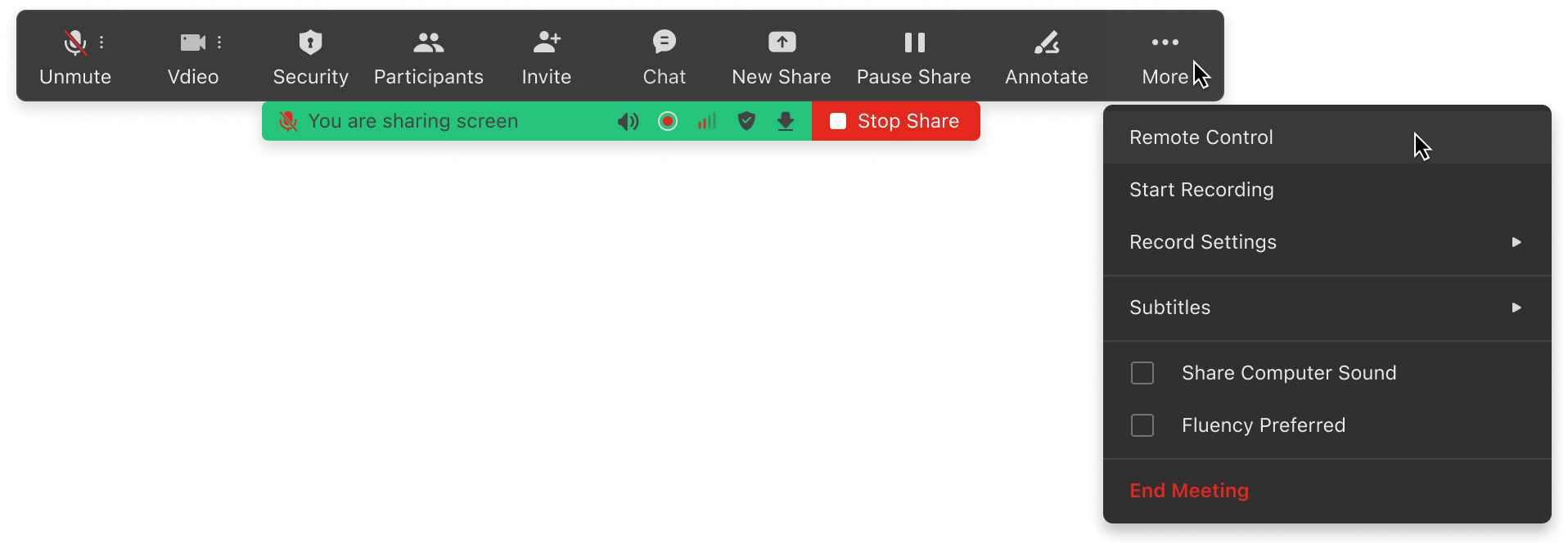
- In the Remote Control pop-up, select a participant to give permission.
- Click other participant to quickly change permissions.
- If you allow the controller to use the clipboard from their side to your computer, or from your computer to their side, then enable the Share clipboard function to make it happen.
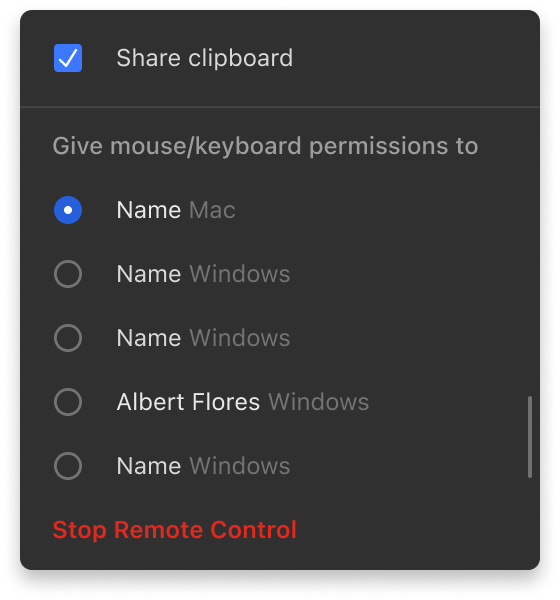
- When you do not need the remote control to help. You can Stop Remote Control in the same pop-up again.
How can I control a Windows computer if I am using Mac
For all the click, and scroll actions, it’s quite the same. While if you mainly use the keyboard, please be noticed to use Window Ctrl to correspond to the Mac Command. And use Window Winkey key correspond to Mac Ctrl key
How can I control a Mac computer if I am using Windows
For all the click, and scroll actions, it’s quite the same. While if you mainly use the keyboard, please be noticed to use Mac Command to correspond to the Windows Winkey. And use Mac Ctrl key to correspond to Window Ctrl key